ニフティクラウドmobile backendを使ってみた
アプリで作成したデータ(Serializableなクラス)をユーザ間で共有する仕組みを探していたところ、ニフティクラウドmobile backend(NCMB)が想像以上に簡単だったためメモ。
公式ドキュメント。導入方法やサンプルなどが非常に充実している。
ドキュメント : 開発者向けドキュメント | ニフティクラウド mobile backend
無料版と有料版の違いは月当たりのリクエスト制限やファイルサイズ制限くらい。
大規模でなければ無料版で十分そう。
データストアの他にプッシュ通知や会員管理もできるらしい。
今回はデータストアの使用のみ。
導入
クイックスタートを読みながら進めれば問題ないはず。
イントロダクション (Unity) : クイックスタート | ニフティクラウド mobile backend
ざっくり以下のとおり。
1.(NCMB)アプリの作成してAPIキーを発行する
2.(Unity)SDKをインポート
3.(Unity)NCMBSettingというコンポーネントをつけたオブジェクトをシーンに配置する
4.(Unity)NCMBSettingにAPIキーを設定する
5.(NCMB)適当な名前をつけたクラスを作成する
クラスはMySQLなどでいうテーブルに当たるが、Key-Valueストアのようにフィールド(カラム)を設定・取得できるのでデータ構造を定義する必要はない
レコードの追加
クラスStagesのフィールドdataに文字列strを登録するコードが以下。
SaveAsync()は非同期でサーバにレコードを送る。コールバックも設定可能。
var saveServerObject = new NCMBObject("Stages");
saveServerObject["data"] = str;
saveServerObject.SaveAsync();
レコードの取得
クラスStagesの一番古いレコード一件を取得し、フィールドdataをデバッグに表示するコード。
追加に比べると複雑に見えるがエラー処理などが書いてあるだけ。
Whereなど普通のDBでできることは大体できそう。
var query = new NCMBQuery("Stages");
query.Limit = 1;
query.OrderByAscending("createDate");
query.FindAsync((List objList, NCMBException e) => {
		if (e == null && objList.Count > 0)
		{
			// 成功時の処理
			Debug.LogError(objList[0]["data"]);
			return;
		}

		// 失敗時の処理
	});
(おまけ)Serializableクラスの文字列化
今回は保存したいデータ(Serializable属性を付けたクラス)をBase64にシリアライズしてNCMBで保存、取得とデシリアライズをして読み込みをした。
たぶんScriptableObjectなどでもいけるはず。
変換に使ったメソッドのコードは以下。
public static string Serialize(T obj) { var bf = new BinaryFormatter(); var ms = new MemoryStream(); bf.Serialize(ms, obj); return Convert.ToBase64String(ms.GetBuffer()); } public static T Deserialize (string str) { var bf = new BinaryFormatter(); var ms = new MemoryStream(Convert.FromBase64String(str)); return (T)bf.Deserialize(ms); }
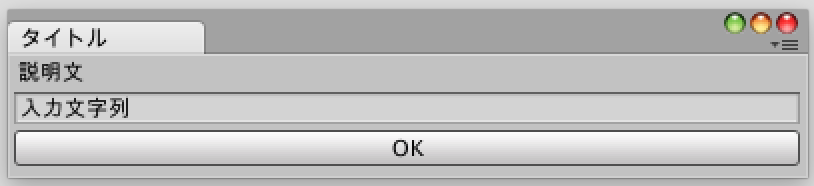
エディタ用テキストダイアログ
ソース
using UnityEngine;
using UnityEditor;

namespace Hiyayakko
{
	public sealed class EditorTextDialog : EditorWindow
	{
		private string label = "";
		private string value = "";
		private System.Action<string> onOk = null;
		private System.Action onCancel = null;

		public static void Show(string title, string label, string defaultValue, System.Action<string> onOk, System.Action onCancel)
		{
			var window = EditorWindow.GetWindow<EditorTextDialog>(title);

			window.label = label;
			window.value = defaultValue;
			window.onOk = onOk;
			window.onCancel = onCancel;

			window.Show();
		}

		private void OnGUI()
		{
			maxSize = minSize = new Vector2(400f, 60f);

			EditorGUILayout.LabelField(label);
			value = EditorGUILayout.TextField(value);
			if (GUILayout.Button("OK"))
			{
				if (onOk != null)
				{
					onOk(value);
					onCancel = null;
					Close();
				}
			}
		}

		private void OnDestroy()
		{
			if (onCancel != null)
			{
				onCancel();
			}
		}
	}
}
使用例
EditorTextDialog.Show("タイトル", "説明文", "入力文字列", v => {
	Debug.LogError("Ok 値=" + v);
}, () => {
	Debug.LogError("Cancel");
});
IntをEnumとして表示する
ソース
using UnityEngine;
using System.Collections;
using System.Collections.Generic;
using System;
using System.Diagnostics;

#if UNITY_EDITOR
using UnityEditor;
#endif

namespace Hiyayakko
{
	[AttributeUsage(AttributeTargets.Field), Conditional("UNITY_EDITOR")]
	public sealed class PopupEnumAttribute : PropertyAttribute
	{
		internal Type type;

		public PopupEnumAttribute(Type type)
		{
			this.type = type;
		}
	}

	#if UNITY_EDITOR
	[CustomPropertyDrawer(typeof(PopupEnumAttribute))]
	public class PopupEnumAttributeDrawer : PropertyDrawer
	{
		public override void OnGUI(Rect position, SerializedProperty property, GUIContent label)
		{
			var popup = (PopupEnumAttribute)attribute;
			if (property.propertyType == SerializedPropertyType.Integer)
			{
				property.intValue = Convert.ToInt32(EditorGUI.EnumPopup(position, label, (Enum)Enum.ToObject(popup.type, property.intValue)));
			}
			else
			{
				EditorGUI.LabelField(position, label.text, "Use PopupEnum with int.");
			}
		}
	}
	#endif
}
使用例
private enum Days { Sun, Mon, Tue, Wed, Thu, Fri, Sat };

[PopupEnum(typeof(Days))]
public int day = 0;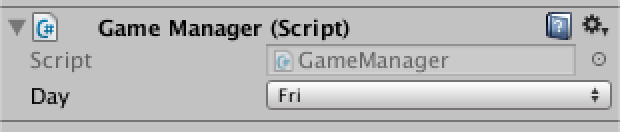
Projects上の右クリックメニュー
Projects上での右クリックメニューはメニューバーのAssets以下と同じなので、
[MenuItem("Assets/~")]で追加できる。
IDによるAnimatorの操作
Animatorのパラメータの設定やステートの切り替えには文字列のほかに、Animator.StringToHash()で取得したIDを使用できる。
文字列の場合と比べコストが低いので、Updateなどで頻繁に呼び出すときはIDをキャッシュして使用するべき。
Debug.Break()
Debug.Break()でエディタが一時停止する。
PrefabのApply,Revert
Scene上に設置されたプレハブのInspector上部に表示される
Applyボタンを押すと変更が元のプレハブに反映される。
Revertボタンを押すと元のプレハブと同じ状態に戻る。
